Introduction
You open your CAD model and everything looks correct. Clean lines, accurate dimensions, a complete structure.
Then you bring it into your rendering software or real-time engine, and something feels off.
The scene looks flat. Materials feel lifeless. Performance drops. What looked like a solid model suddenly becomes difficult to work with.
This is one of the most common issues in architectural visualization. The problem is not your rendering software, and it is not your skills.
It is the transition from CAD to visualization.
Most archviz problems start before rendering even begins. Understanding where things go wrong in this pipeline is what separates smooth workflows from frustrating ones.
This guide breaks down the key issues in the CAD to render workflow and how to avoid them.
The Hidden Gap Between CAD and Visualization
CAD software and rendering tools serve very different purposes.
CAD tools such as Revit, AutoCAD, or similar platforms are built for:
- Precision and measurement
- Technical documentation
- Construction workflows
Visualization tools such as 3ds Max, Blender, Unity, or Unreal Engine are built for:
- Realism and lighting
- Materials and atmosphere
- Visual storytelling
This difference creates a gap.
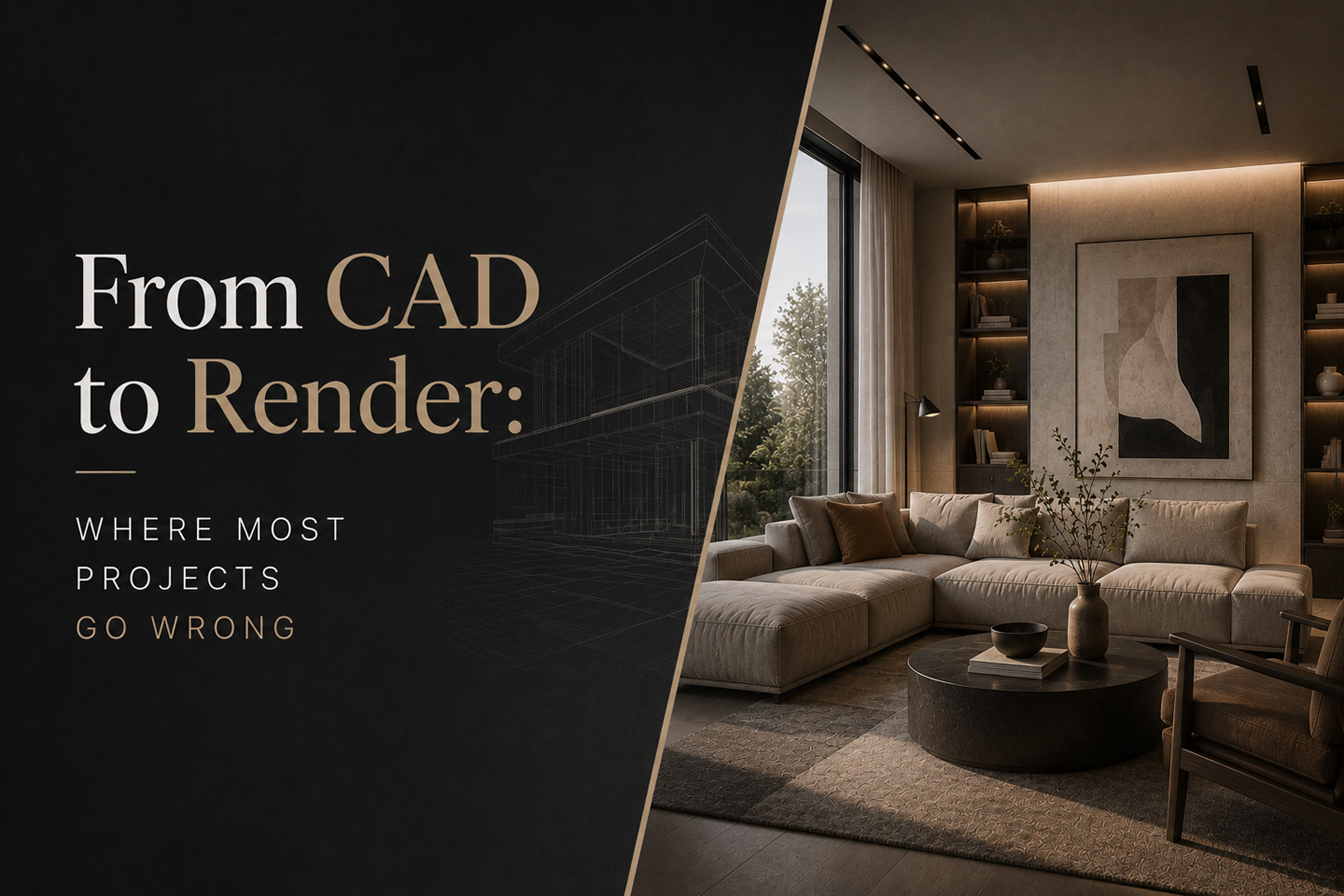
A CAD model is technically correct, but it is not designed to look good in a render. If you move directly from CAD to rendering without adjustments, you are forcing a technical model into a visual workflow.
That is where most problems begin.
Problem #1: Geometry That Isn’t Meant for Rendering
One of the first issues you encounter is geometry.
What happens
- Models feel heavy and slow
- Viewport performance drops
- Objects are harder to manage
Why it happens
CAD models often include:
- Extremely detailed construction elements
- Hidden or internal geometry
- Components that are not visible in a final render
CAD prioritizes accuracy. Rendering requires efficiency.
The result
You end up working with geometry that is far more complex than necessary. This slows down your scene and makes everything harder to control.
How to fix it
- Remove unnecessary elements before export
- Simplify geometry where possible
- Focus only on what will actually be visible
Cleaning geometry early in the pipeline makes a significant difference later.
Problem #2: Missing or Useless Materials
Materials are another major breaking point.
What happens
- Surfaces look flat or unrealistic
- Everything appears overly uniform
- Materials do not react properly to light
Why it happens
CAD materials are not built for rendering. They are often:
- Simple color placeholders
- Non-PBR materials
- Lacking texture maps
They are meant to represent categories, not realism.
The result
Even with good lighting, your scene looks lifeless.
How to fix it
- Replace CAD materials completely
- Use proper PBR materials for all visible surfaces
- Ensure materials include:
- albedo
- roughness
- normal maps
Rebuilding materials is not optional if you want realistic results.
Problem #3: Scale and Units Issues
Scale problems are subtle but impactful.
What happens
- Objects feel too large or too small
- Camera movement feels unnatural
- Lighting behaves inconsistently
Why it happens
CAD and rendering tools may use different unit systems. During export and import, these differences can distort scale.
The result
Even if your scene looks correct at first glance, it does not feel right.
How to fix it
- Standardize units before exporting from CAD
- Verify scale immediately after importing into your rendering software
- Use reference objects to confirm proportions
Correct scale is essential for believable archviz results.
Problem #4: Overloading the Scene Too Early
A very common mistake is importing everything from the CAD model into your rendering scene.
What happens
- Scene becomes heavy and slow
- Navigation becomes difficult
- You lose focus on what actually matters visually
Why it happens
It is tempting to keep everything “just in case,” including:
- Hidden layers
- Construction details
- Internal components
The result
You are working with far more data than you need.
How to fix it
- Export only visible and relevant elements
- Remove unnecessary layers
- Keep your scene clean and focused
A lighter scene is easier to manage, faster to render, and more enjoyable to work with.
Problem #5: No Asset Strategy
This is one of the biggest reasons renders feel empty or incomplete.
What happens
- Scenes look technically correct but visually dull
- Interiors feel lifeless
- Exterior scenes lack detail and atmosphere
Why it happens
CAD models provide structure, not detail. They define walls, floors, and layout, but they do not include:
- Furniture
- Lighting fixtures
- Decorative elements
- Vegetation
The result
You end up with a clean but unconvincing render.
The key insight
CAD gives you the framework. Assets bring the scene to life.
How to fix it
- Plan your asset usage early
- Add high-quality 3D models for:
- furniture
- lighting
- decor
- plants and outdoor elements
- Focus on key areas that define the scene
Using a structured library of 3D assets can significantly speed up this process and improve consistency across your work.
Problem #6: Lighting Treated as an Afterthought
Lighting is often left until the end of the process.
What happens
- Flat or unrealistic renders
- Poor shadow definition
- Materials do not look correct
Why it happens
The focus is placed on geometry and materials first, with lighting added later as a finishing step.
The result
Lighting feels disconnected from the rest of the scene.
How to fix it
- Start testing lighting early
- Adjust materials and assets under real lighting conditions
- Build your scene with lighting in mind, not after it
Lighting is not a final step. It is part of the entire workflow.
The Real CAD to Render Workflow
A smooth archviz pipeline follows a structured process.
- Clean the CAD model and remove unnecessary elements
- Export only what is needed for visualization
- Verify scale and units in your rendering software
- Replace CAD materials with proper PBR materials
- Add optimized 3D assets for detail and realism
- Set up and test lighting early
- Render and refine
Following this structure reduces friction and keeps your project manageable from start to finish.
The Bigger Insight
Most rendering issues are not caused by the rendering engine.
They are caused by how the model is prepared before it reaches the rendering stage.
A technically correct CAD model can still produce poor visual results if it is not adapted properly for visualization.
Understanding this shift is what improves your workflow.
Final Thoughts
CAD and rendering are built for different purposes. One focuses on precision, the other on visual communication.
Bridging the gap between them is where most of the work happens.
Once you learn to clean geometry, rebuild materials, manage scale, and integrate proper assets, your renders improve dramatically.
The goal is not just to render a model. It is to translate a technical design into a convincing visual experience.